
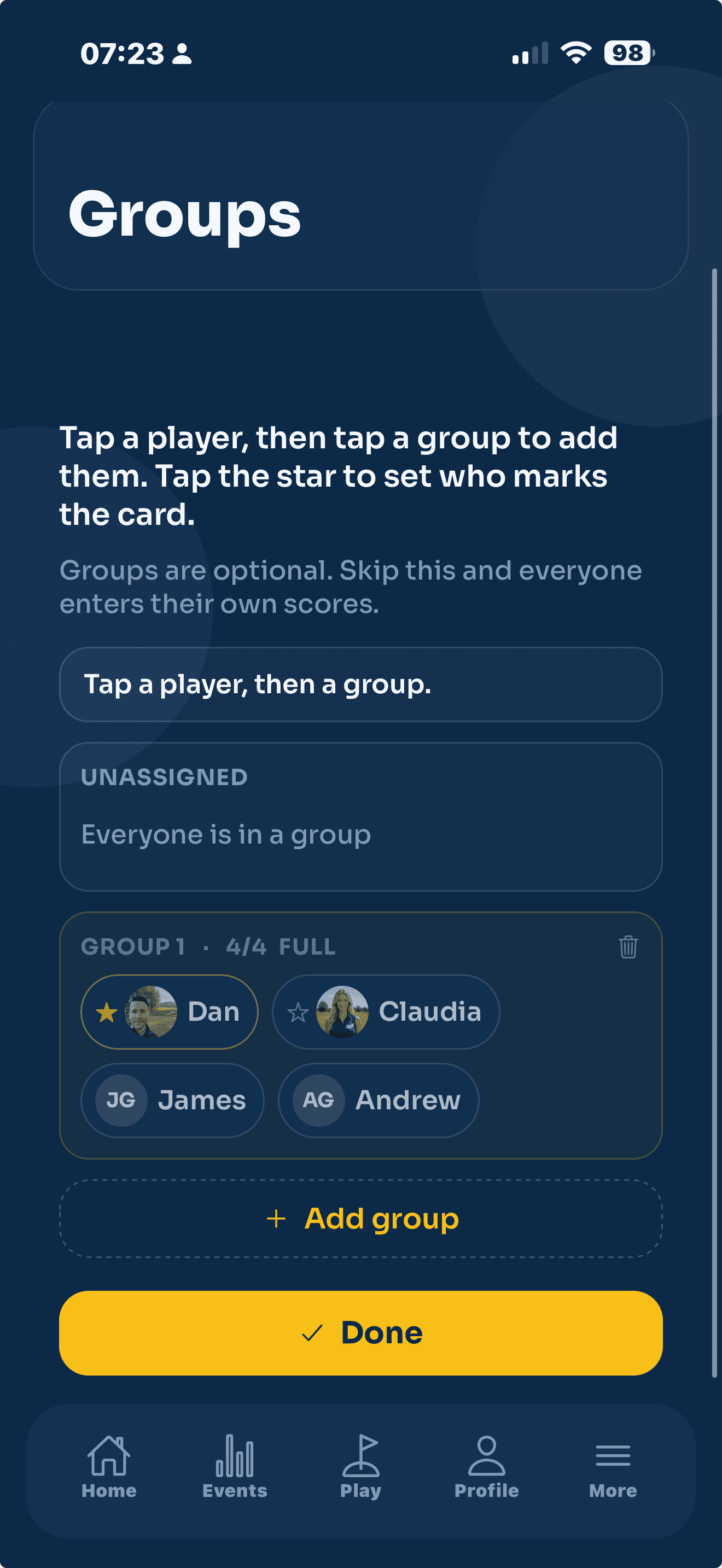
Groups (sometimes called flights) let you split an event into playing groups, so the four players going out together are kept together. They matter for two reasons: they keep the leaderboard tidy, and they decide who can mark whose card. Groups are set up from the event.
Groups are optional. Skip this and everyone enters their own scores. Use groups when one person is keeping score for the others, or when you just want the field organised.
Add a group
- Open your event and go to the players list, then tap Groups (or Edit groups).
- Tap Add group for each playing group you need.
- Tap a player, then tap the group you want to put them in.
- Repeat until everyone is placed. You will see "Everyone is in a group" when the field is fully assigned.
Put every player in a group before you start. If a group is left empty, remove it first. The event will not start with players still unassigned or an empty group hanging around.
Set who marks the card
Inside a group, tap the star next to a player to make them the card marker for that group. That person enters everyone's scores for the group. This is covered in full in Card markers.
Guests in a group
A guest must share a group with the member who marks them, because the guest cannot enter their own scores. If you try to place a guest without a member to mark them, you will be prompted to fix it first.
Changing groups
Open Groups again any time before the event starts to move players around. Tap a player, then tap the new group. Once scores are being entered, the groups are locked so the standings stay correct.