
A guest is a player in your event who does not have a GolfHandicapp account. Perfect for a society day, a visitor, or anyone who just wants to play without downloading anything. You add them, someone in the group keeps their card, and they appear on the leaderboard like everyone else.
Guests are set up from the event itself, so create the event first and pick your course.
Add a guest
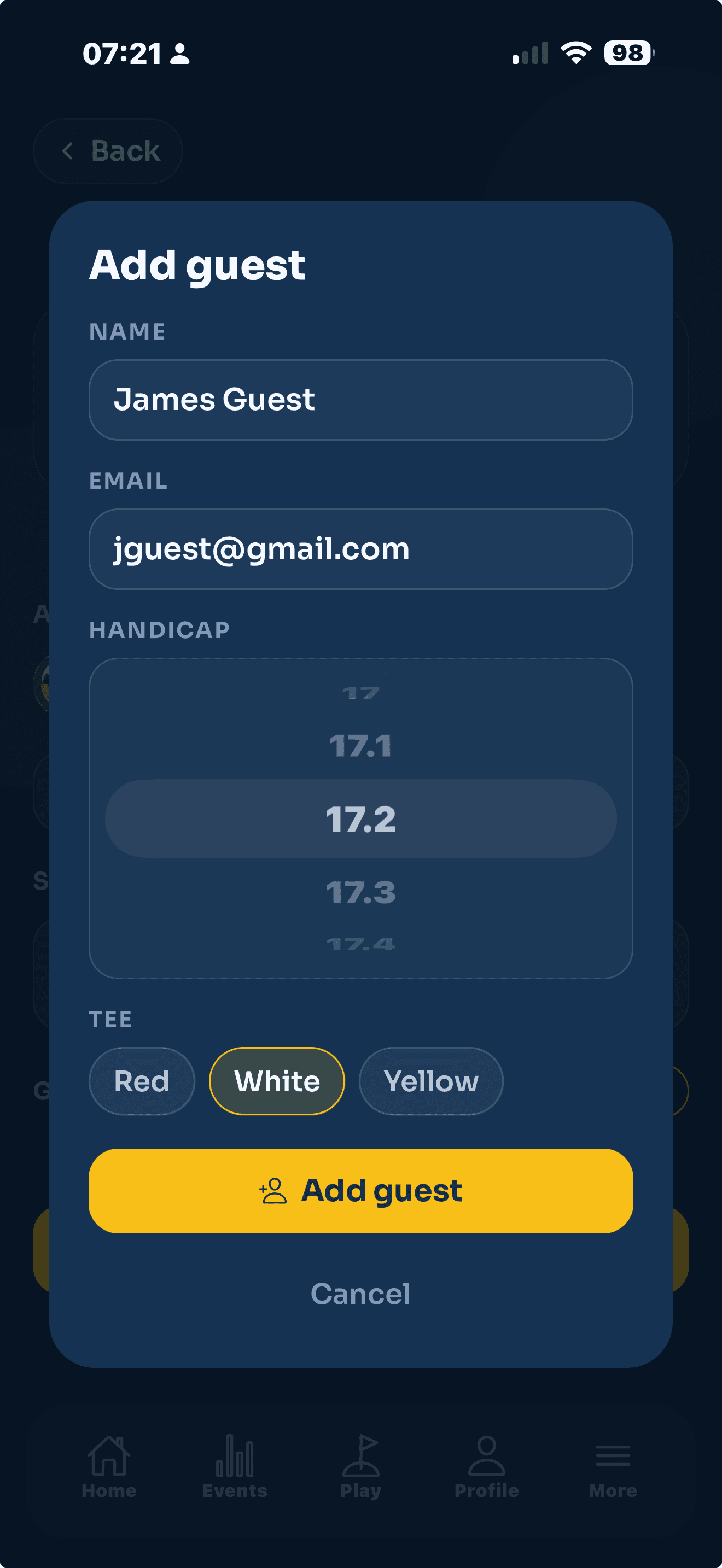
- Open your event and go to the players list. Tap Add players (or Edit players if the event already has people in it).
- Tap Add guest.
- Enter the guest's Name. That is the only thing we need.
- Add their Email if you have it. This is optional and only used to keep their record together.
- Set their Handicap and choose the Tee they are playing. Their strokes are worked out from that tee, just like a member.
- Under Marked by, choose the member who will enter the guest's scores.
- Tap Add guest.
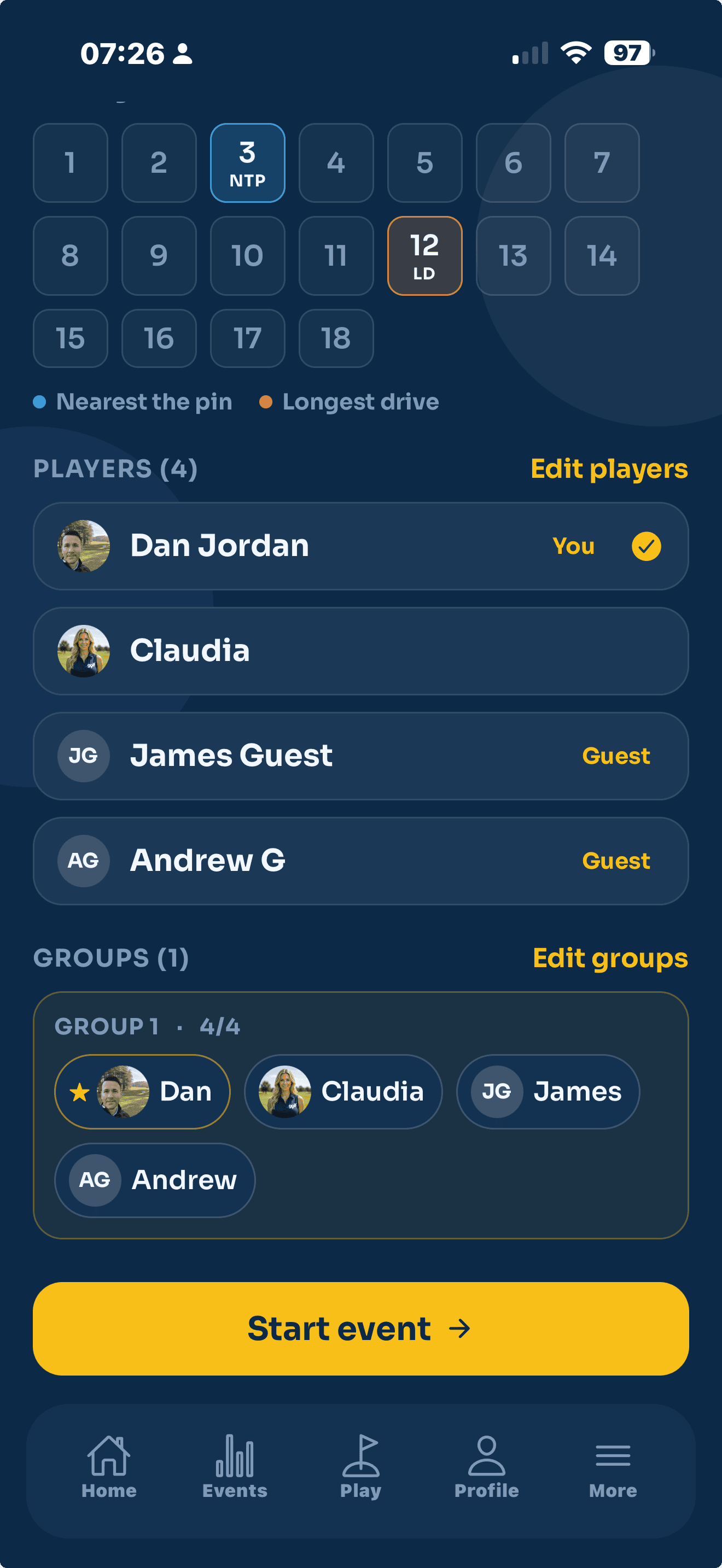
The guest now shows in the players list with a Guest tag.
A guest cannot enter their own scores, so they always need a member to mark their card. If you see "Add a member first, so someone can mark the guest", add at least one account holder to the event, then add the guest.
Who keeps a guest's score
The member you picked under Marked by enters that guest's scores on the day, from their own phone. If you are using groups, the guest sits in the same group as their marker. See Card markers for how one person keeps score for several players at once.
Editing or removing a guest
Tap the guest in the players list to open Edit guest. You can change their name, handicap, tee or who marks them. To take a guest out of the event, remove them the same way you would any player.
Guests are free. They do not need a subscription and nothing is downloaded on their side. They only exist inside this event.